OpenCode on Chimera
Access: JupyterHUB
OpenCode is an open-source AI coding agent that runs in a terminal. It reads and edits files in your project, runs commands, and plans and carries out multi-step tasks. On Chimera it runs inside your JupyterHUB session from a shared installation under /work/_software/opencode, and it is set up to work with the cluster out of the box:
- University models. OpenCode uses the University Gateway (LiteLLM), so you work with the models your personal LiteLLM key gives you access to, and your data stays within the university's gateway.
- Chimera MCP tools. The Chimera Slurm and FileCompress MCP servers are connected, so OpenCode can inspect the queue, submit and diagnose jobs, read job logs, and handle archives. What these tools can and cannot do is documented on the AI Interfaces for Chimera page.
- Chimera skills and the HPC operator agent. The
chimera-cluster,chimera-slurm-mcp, andchimera-filecompress-mcpskills, and a ready-madehpc-operatoragent for cluster work.
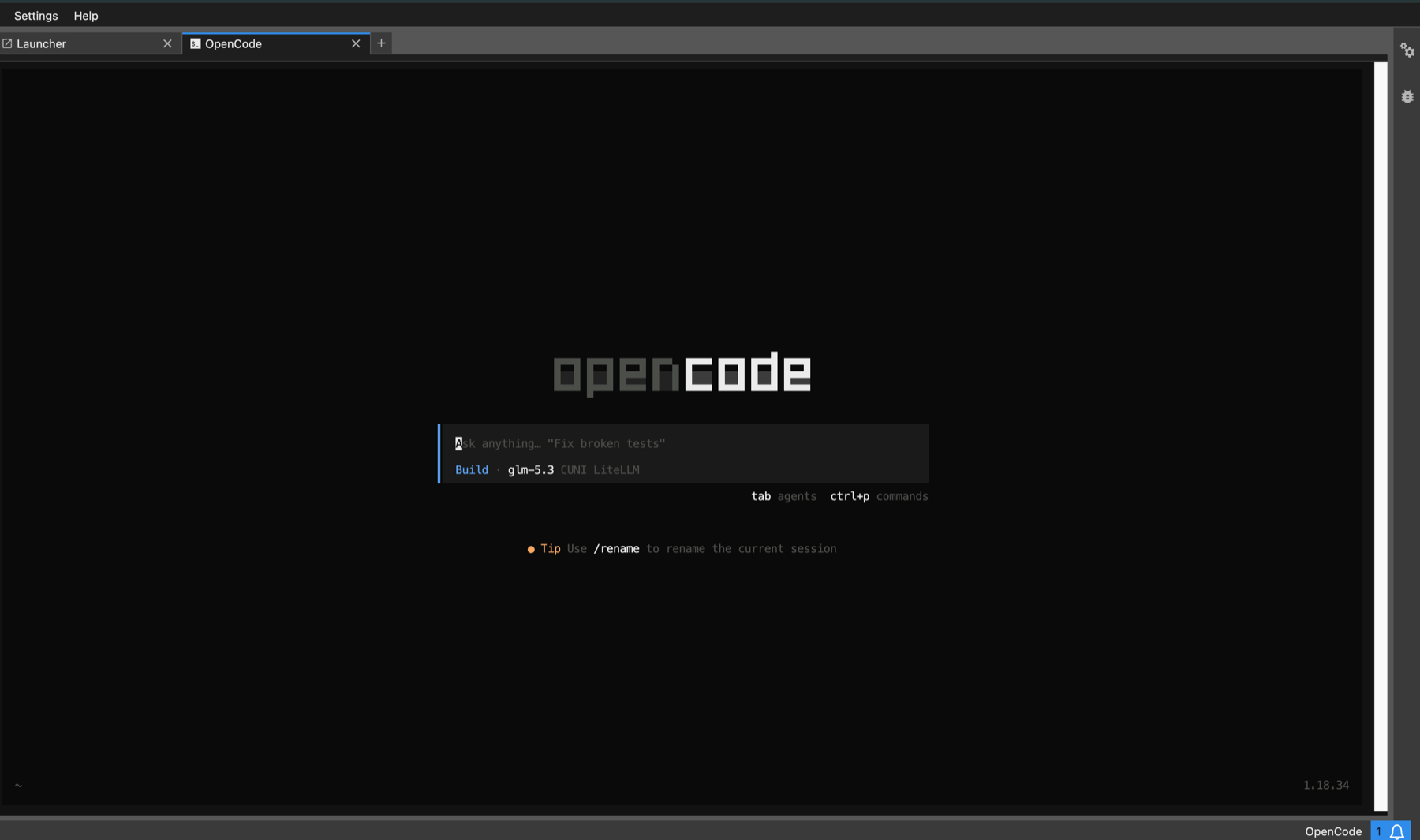
You can use OpenCode from a JupyterLab terminal, or open it from its own opencode tile in the JupyterLab launcher.
For a comparison with the other platforms, see Agentic platforms for research.
Prerequisites
- A Chimera account with access to JupyterHUB.
- Optionally, a personal LiteLLM API key for the university models; see University Gateway for how to obtain one. You can install OpenCode without it and add the key later.
- You do not need a
/work/<CASlogin>directory. OpenCode keeps its configuration and sessions in your home directory, and the tile starts there by default.
Install
OpenCode is not installed for you. Do this once.
- In JupyterLab, click the Terminal app.
- Type:
/work/_software/opencode/install-launcher
- The installer asks:
Do you have a University LiteLLM API key? [Y/n]
- Y (or Enter): paste your key. The input is hidden. The installer checks the key with the gateway, lists the models available to you, and lets you choose the default one.
-
n: OpenCode is installed anyway, and the installer shows where to request a key. You can add it later, see Adding models.
-
Restart your JupyterHub server, so that JupyterLab discovers the new opencode tile. Reloading the browser page is not enough.
The installer does not copy OpenCode into your account. It links the shared command into ~/.local/bin/opencode, writes your configuration into ~/.config/opencode, and installs the small launcher package for the tile. If ~/.local/bin is not on your PATH yet, the installer prints the line to add to your ~/.bashrc.
Your key, if you entered one, is stored in ~/.config/opencode/litellm.key, readable only by you. It is never written into the configuration file itself.
Start OpenCode
From the launcher: click the opencode tile. A browser terminal opens and first asks where you want to work:
OpenCode - where do you want to work?
Project directory: /home/<CASlogin>/my-project
The last directory you used is pre-filled (the first time, your home directory), so Enter usually suffices. Tab completes paths, a relative path is taken relative to your home directory, and a directory that does not exist yet is created when you confirm. OpenCode then starts in that directory. For projects with large data you can type a directory under /work/<CASlogin>, if you have one. Each browser tab runs its own OpenCode; when you quit OpenCode, the tab offers to reconnect, which asks again.
Choose the directory before you start. OpenCode keeps your sessions per directory it was started in, and /sessions lists only the sessions of that project. A session cannot be moved to another directory later: /move only moves sessions between git worktrees of the same repository.
From a terminal:
cd ~/my-project
opencode
Useful commands inside OpenCode:
| Command | Effect |
|---|---|
/models |
switch the model |
/sessions |
resume an earlier conversation |
Tab |
switch the agent, e.g. to hpc-operator |
@hpc-operator-subagent |
ask the HPC specialist from any agent |
/connect |
connect another model provider |
Working with the cluster
Select the hpc-operator agent (press Tab) for cluster work. It uses the Chimera MCP tools instead of raw shell commands, checks the live state of the cluster before giving advice, and summarises a job before submitting it. Try:
Check the current Chimera cluster state.
The MCP servers are started through the cluster module system (module load chimera-mcp). The hpc-operator agent is not allowed to run shell commands and asks before editing files; the default build agent has no such limits.
Warning
OpenCode is not sandboxed. It runs with your own Unix permissions and can reach any file your account can reach. It can run commands, submit and cancel jobs, and consume your allocation. Anything it reads may be sent to the model provider, including file paths, log contents, and parts of your data. Do not ask it to handle secrets, passwords, tokens, private keys, or data you are not allowed to share. Any action the agent takes remains your personal responsibility.
Adding models
University models
- Request a personal LiteLLM API key as described in University Gateway.
- When you have it, run:
/work/_software/opencode/install-launcher --reconfigure
Paste the key; the installer adds every model your key can use and lets you choose the default. Then start OpenCode again; no JupyterHub restart is needed for this.
When you are granted more models later, for example access to commercial models through your faculty, run the installer again without --reconfigure. It keeps your key and picks up the new models. Do not add models to the litellm section of opencode.json by hand; the installer rewrites that list from what your key can actually use.
Without a LiteLLM key
Without a key, OpenCode offers only its own free opencode/... models. They are run by opencode.ai outside the university, so do not use them for sensitive, personal, or unpublished data. Use the university models for real work.
Other providers
You can also connect your own account with another provider, such as OpenAI or Anthropic: type /connect in OpenCode and follow the prompts, or run opencode auth login in a terminal. The provider's models then appear in /models next to the university ones. You are responsible for the provider's terms and for the data you send there.
Update
Run the installer again at any time:
/work/_software/opencode/install-launcher                # refresh models and settings
/work/_software/opencode/install-launcher --reconfigure  # enter a new API key
Your own additions to ~/.config/opencode/opencode.json are kept, and the previous version is saved next to it as opencode.json.bak-<timestamp>. Answering n, or pressing Enter at the key prompt, keeps your current models as they are.
New OpenCode versions are installed centrally and reach you at the next start, without re-running the installer.
Data location
| What | Where |
|---|---|
| Configuration, API key, skills, agents | ~/.config/opencode |
| Sessions and conversation history | ~/.local/share/opencode |
| Shared command and defaults | /work/_software/opencode |
| Tile log | ~/opencode_<jobid>.log |
The skills in ~/.config/opencode/skills are links into the shared installation, so they are updated centrally.
Troubleshooting
The tile does not appear in the launcher. Restart your JupyterHub server; a browser reload does not pick up new launcher entries. If it is still missing, check what is installed:
/usr/bin/python3 -c 'import importlib.metadata as m; print(m.version("jupyter-opencode-proxy"))'
The tile shows "OpenCode is not set up for you yet". Run the installer, then restart your JupyterHub server.
opencode: command not found. Add ~/.local/bin to your PATH as the installer suggested, or open a new terminal.
"The gateway rejected this key". The key is wrong or has been revoked. Request a new one as described in University Gateway, then run the installer with --reconfigure.
"Key accepted, but it does not give access to any model yet". Ask the LiteLLM administrator to assign you to a user group, then run the installer again. Your key is already saved.
The Chimera MCP tools are missing. Check the servers with opencode mcp list; both chimera-slurm and chimera-filecompress should be connected. If not, check that the module can be found on the node where your JupyterHub server runs:
module spider chimera-mcp
You need the details behind a failure. The tile writes its log to ~/opencode_<jobid>.log, named after your JupyterHub session.