OpenWebUI
Pilot version
OpenWebUI is still in an early stage of development and is currently running as a pilot version. Features, available models, and settings may change, and you may run into bugs or outages.
OpenWebUI is our locally hosted platform based on open-source software with a wide range of features. Users can "chat" with local and cloud-based AI models, create specialized AI agents, work with a knowledge base and more. It runs entirely in the browser, with no installation needed on the user's side.
Model access is routed through a LiteLLM gateway, which handles authentication, request routing, and usage limits. The set of models available to each user depends on their affiliation (role and faculty membership).
Access
To log in, go to OpenWebUI and sign in with your standard CAS credentials. Then send an email to the AI sandbox administrators asking for access. Once an administrator approves your account, you can start using the service.
Instructions for use
After logging in succesfuly, you will be greeted with a browsers-based interface.
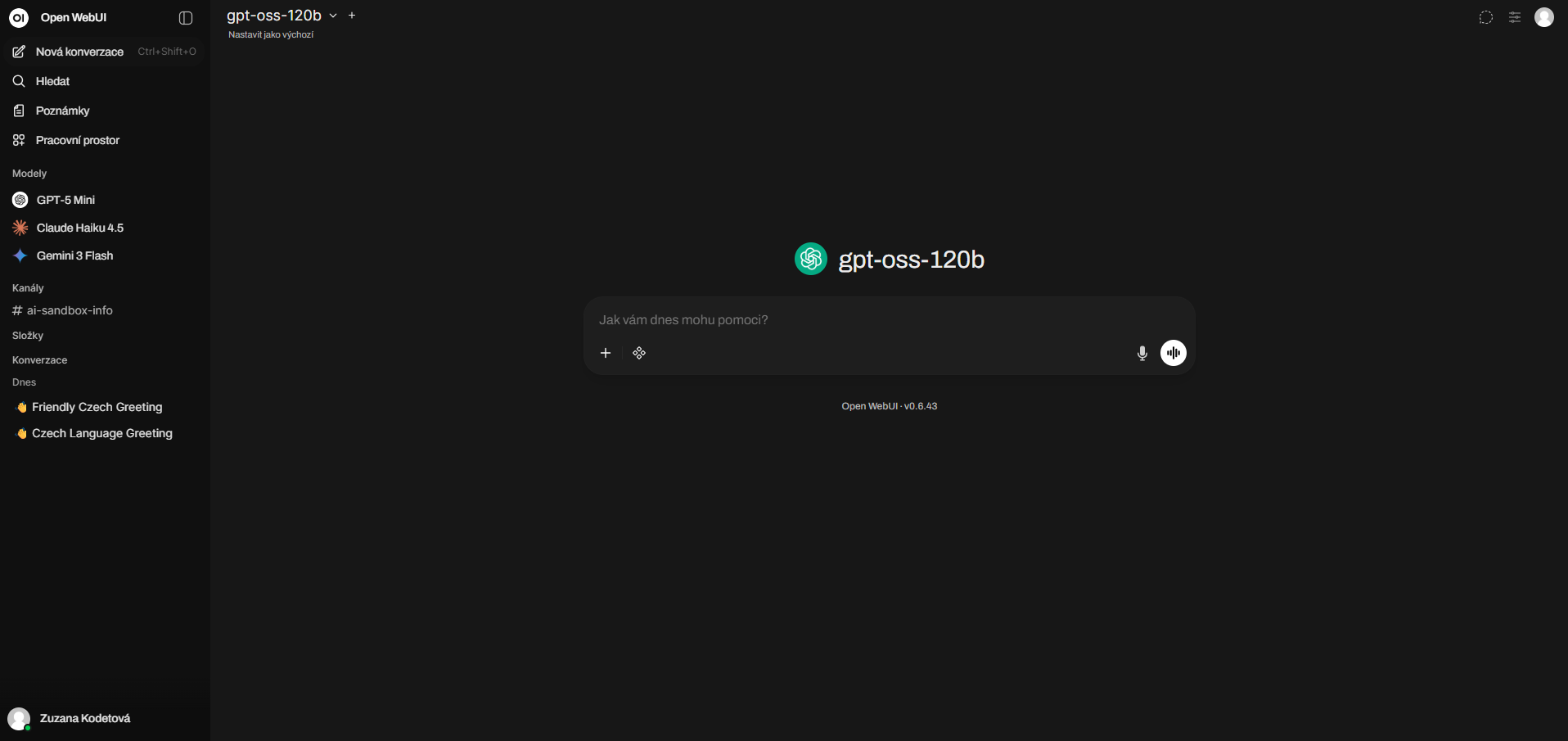
You can start a new conversation from the sidebar by clicking New chat and choosing the desired model or use the model dropdown at the top of the chat window to switch models. + button next to model selection enables combining multiple models in one chat.
History of your conversations is located under main model selection in the sidebar. Chats can be sorted into folders accordingly. Your conversation history is saved in the sidebar and can be reopened, renamed, or deleted. Each conversation is independent. Context does not carry over between separate chats.
Models
The following models are available through the University Gateway as of 21 October 2026. The models shown in your account depend on your user group.
Local models (CUNI)
All model names ending in -local run on CUNI infrastructure. Data stays within Charles University. Local models currently have no token usage limits.
gpt-oss-120b-localnemotron-3.5-lightning-localpaddleocr-vl-1.6-local
Partner models (e-INFRA CZ)
The other non-Claude models are provided by e-INFRA CZ, the Czech national research infrastructure. They run in the dedicated sensitive part of its infrastructure when accessed through the University Gateway.
- kimi-k3 – Moonshot AI; strong long-context reasoning
- gemma4 – Google open-weights; efficient multilingual model
- qwen3.8-27b – Alibaba 27B; multilingual, strong coding and reasoning
- mistral-medium-3.5 – Mistral mid-size; efficient European multilingual model
- gpt-oss-120b – OpenAI open-source 120B; large general-purpose model
- deepseek-v4-flash – DeepSeek fast variant; efficient reasoning model
- glm-5.3 – Zhipu AI; Chinese-English bilingual general model
- paddleOCR-vl-1.6 - Baidu Inc.; compact model for document parsing and structure extraction
- nemotron-3.5-lightning - NVIDIA; fast model for agentic workflows
Claude models (testing only)
The Claude models are available for testing only, with a budget of USD 5. Requests are processed by an external commercial provider. Use only non-sensitive and public data.
claude-haiku-4-5claude-opus-5claude-sonnet-4-5
Features and environment settings
OpenWebUI extends functionality through configurable workspace features. Each operates independently but can be combined.
Tools
A tool is a Python function that extends the model's capabilities by making real-time calls to external services.
Tools are created in Workspace > Tools using the built-in code editor. Each function requires a docstring that describes its purpose and parameters, which the model uses to decide when and how to call it. Once saved, a tool becomes available across conversations and is toggled on per chat via the tools icon in the message input area. The model invokes tools autonomously based on prompt context.
Tools can be used in channels as well in private chats.
Right now, tools are not permitted by default. Please, contact an administrator (ai.sandbox@cuni.cz ) for permission to create and use Tools.
Channels
A channel is a persistent group conversation shared by multiple users and a model.
Channels are created from the sidebar by specifying a name, selecting a model, and later adding members from your group. All messages and model responses are visible to every member and remain stored across sessions.
You can also create a direct channel message that is visible to you, one other user and one language model.
Webhooks
A webhook is an outgoing request sent to an external URL when a specific internal event occurs.
You can find webhooks in Settings > Notifications > Notification Targets. A target is a webhook URL combined with a set of events to subscribe to: chat finished, chat failed, channel message, calendar alert, or file extraction failure.
Custom models
A custom model is a saved configuration built on top of an existing base model.
Models are created in Workspace > Models by selecting a base model, assigning a name, writing a system prompt, and adjusting generation parameters such as temperature and context length. The system prompt defines the model's behavior. Once saved, the model appears alongside the platform's default models.
Usage tracking via LiteLLM
LiteLLM allows users to check their spending in tokens using your API key. Users obtain their key after contacting sandbox administrator at ai.sandbox@cuni.cz. The following steps will help users view their usage in USD:
- Go to LiteLLM UI
- Log in by selecting Authorize
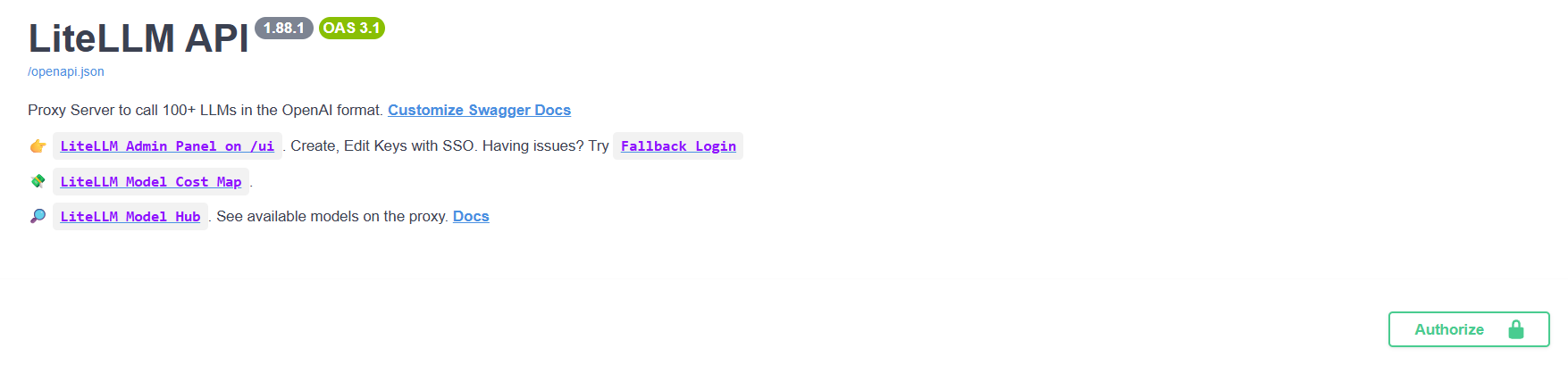
- Paste your API key in Value: and authorize.
- Navigate to key info
- Select Try it out. Then Execute your call.
- In details of the response, "spend" shows how many USD you spent in total. "max_budget" shows your budget cap.
Using Chimera through HPC operator
OpenWebUI also provides the HPC operator agent for users who want to work with the Chimera cluster from a browser. You can find it in the model selection tab together with the other available models and agents. HPC operator currently runs on the qwen3.8-27b model hosted by e-INFRA CZ.
The agent is configured with Chimera-specific instructions and skills, and it can use the Chimera gateway tools exposed to OpenWebUI. These tools are based on ChimeraMCP, the guarded interface for Slurm, job logs, user-scoped files, and archive operations on Chimera. This gives the agent structured access to Chimera workflows without giving it unrestricted shell access.
We know that HPC operator still has bugs. If you encounter an interesting bug, please send us the relevant chat by email at ai.sandbox@cuni.cz. We will investigate it and use your feedback to improve the agent.
To start:
- Log in to OpenWebUI with your CAS account.
- Start a new chat, open the model selection tab, and select the HPC operator agent.
- Ask the agent to generate your Chimera SSH public key:
Generate my Chimera SSH public key.
The agent will return a public key managed by OpenWebUI for your Chimera login. Copy that public key to Chimera and add it to ~/.ssh/authorized_keys according to the Chimera access instructions. Do not paste or share any private key. After adding the public key, wait about one minute before using SSH-backed Chimera tools, because SSH access can take a short time to become active.
After the SSH key is active, HPC operator can use Chimera Slurm and FileCompress tools. It can help you:
- inspect current cluster state, partitions, accounts, quotas, and software modules,
- list your Slurm jobs and read job details, logs, accounting, and efficiency reports,
- prepare and submit guarded Slurm jobs,
- plan archive creation or extraction before changing files,
- create or extract supported archives when the requested operation is safe for the configured policy.
Good first requests are:
Show my Chimera jobs.
Summarize my Chimera partitions, quotas, and Slurm associations.
Plan creating an archive from ~/project.
Before submitting jobs, canceling jobs, moving files, extracting archives, or making other changes on Chimera, ask the agent to show the exact planned action, target paths, job inputs, Slurm overrides, and expected outputs.
Common onboarding messages:
ssh_key_not_readymeans the public key has not been installed on Chimera yet, the key permissions need to be fixed, or SSH access has not become active yet.missing_user_identitymeans OpenWebUI did not provide the user identity needed by the gateway. Try a fresh chat or log in again; if the problem continues, contact support.admin_chimera_login_not_allowedmeans the OpenWebUI admin account is being used instead of a real Chimera login.
Data Safety
System administrators cannot view your chats, knowledge bases or uploaded files. Apply the same rules to uploaded files and attached knowledge bases as to your messages.
An agent that uses Chimera tools acts on your behalf on the cluster. Do not ask it to handle passwords, tokens, private keys, or sensitive data that should not be sent to the selected model provider. You remain responsible for submitted jobs, file changes, resource usage, and compliance with Chimera site policy.